Organize your inventory in Guild Wars 2 using the "Deposit All Materials" and "Compact" options, and manage your character's equipment and stats through the Hero Panel, accessible by pressing H.
Understanding the Hero Panel
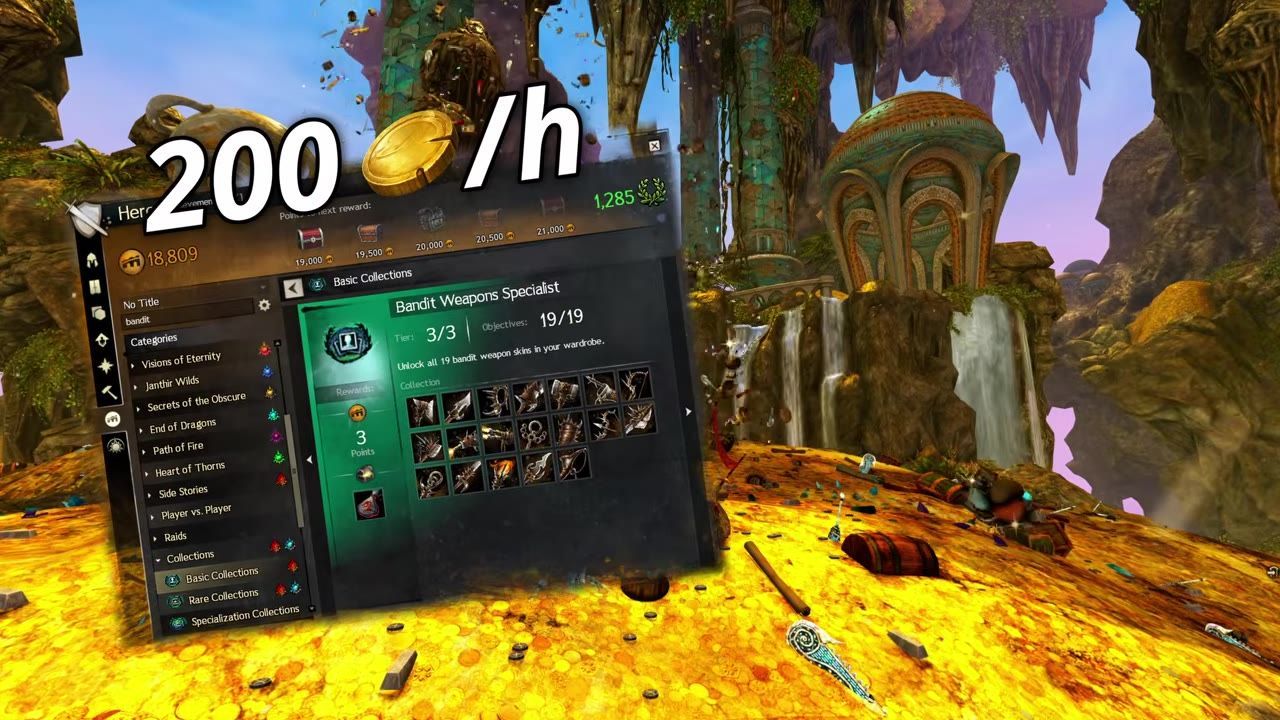
The Hero Panel serves as the central hub for managing your character's gear, stats, and other customization options. Press H to access this panel.
- The Equipment tab lets you view your character's current gear, weapons, and accessories.
- Various tabs also include cosmetic updates, skill and trait setups, and detailed stat tracking.
- Customization is done by clicking on specific items for equipment, weapon swapping, and skill allocation.

The Hero Panel displays the character's equipment and stats layout in the game interface. — Lucky Ghost
Inventory Management Basics
Guild Wars 2 offers several tools to keep inventory organized effectively:
- Deposit All Materials: Use this button to automatically send crafting items to material storage in your bank.
- Compact: This option rearranges items to fill empty spaces and create a neater inventory layout.
- Sell Junk Items: Visit merchants and select "Sell Junk" to remove unnecessary items clogging your inventory.
- Consider larger bags to expand your inventory space significantly.

The inventory interface is displayed with the 'Deposit All Materials' button highlighted. — Lucky Ghost
Using the Hero Panel for Equipment Management
The Equipment tab in the Hero Panel enables detailed gear management, including upgrades and stat modifications.
- Gear equipped in slots such as primary weapons, secondary weapons, and underwater tools can be inspected or swapped directly.
- Clicking on equipped items reveals available upgrades, such as runes and infusions.
- Accessory slots include amulets, rings, back items, and other stat-enhancing options.

The Hero Panel displays the Equipment tab with gear and attributes visible. — Lucky Ghost
Material Storage Insights
Crafting materials are automatically sent to your account-wide storage via the Deposit All button in the inventory interface.
- This storage reduces clutter in the inventory and provides quick access during crafting steps.
- View your stored materials in the crafting section of your bank.
Hero Panel Layout Functions
The Hero Panel features several tabs with dedicated functions:
- Training tab: Tracks hero point allocation for skill and specialization choices.
- Fashion tab: Customize gear appearance through skins and dyes.
- Achievements tab: Monitors progress and rewards for completing in-game challenges.
- Crafting: Provides recipe details for crafting items and gear.
Customizing Your Inventory Settings
Guild Wars 2 has settings dedicated to optimizing inventory management:
FAQ
How do I organize my inventory in Guild Wars 2?
Use tools like Deposit All Materials to store crafting items and Compact to reorder items neatly. Selling junk or upgrading to larger bags can also help manage space.
What is the hero panel in Guild Wars 2?
The Hero Panel is a character management interface accessed by pressing H, designed for equipment, stats, and customization features.
How to equip items through the hero panel?
Navigate to the Equipment tab in the Hero Panel, click on gear slots, and select desired items. Upgrades, such as runes and infusions, can also be applied here.
Where to find crafting materials storage in Guild Wars 2?
Crafting materials are sent to account-wide material storage via the Deposit All Materials button. They can be viewed in the bank's crafting section.
What are the functions of each section in the hero panel?
Each tab in the Hero Panel serves a purpose: Training tracks skill/site progression, Fashion customizes gear aesthetics, Achievements tracks milestones, and Crafting aids in material recipe navigation.
Sources
Screenshots on this page are frames from the videos below, used to illustrate the steps they describe. All rights remain with their creators.
- Guild Wars 2 - Beginner Guide | Secrets, Fractals, Meta Events and More! — Lucky Ghost, June 26, 2026
Checked against:
- The Raids and Wardrobe Update Is Live Now! — Anet Richie, 2026-02-03
- 2025 Holiday Studio Update: A Message from the Guild Wars 2 Team — ArenaNetJoie, 2025-12-19
- Game updates - Guild Wars 2 Wiki (GW2W) — wiki.guildwars2.com