Start by using referral codes for rewards and completing starter tasks to claim valuable loot and crucial rewards. Leverage the AoE orb mechanic for efficient combat, and consult in-game guides and resources like the item list for progression tips.
Redeem Referral Codes
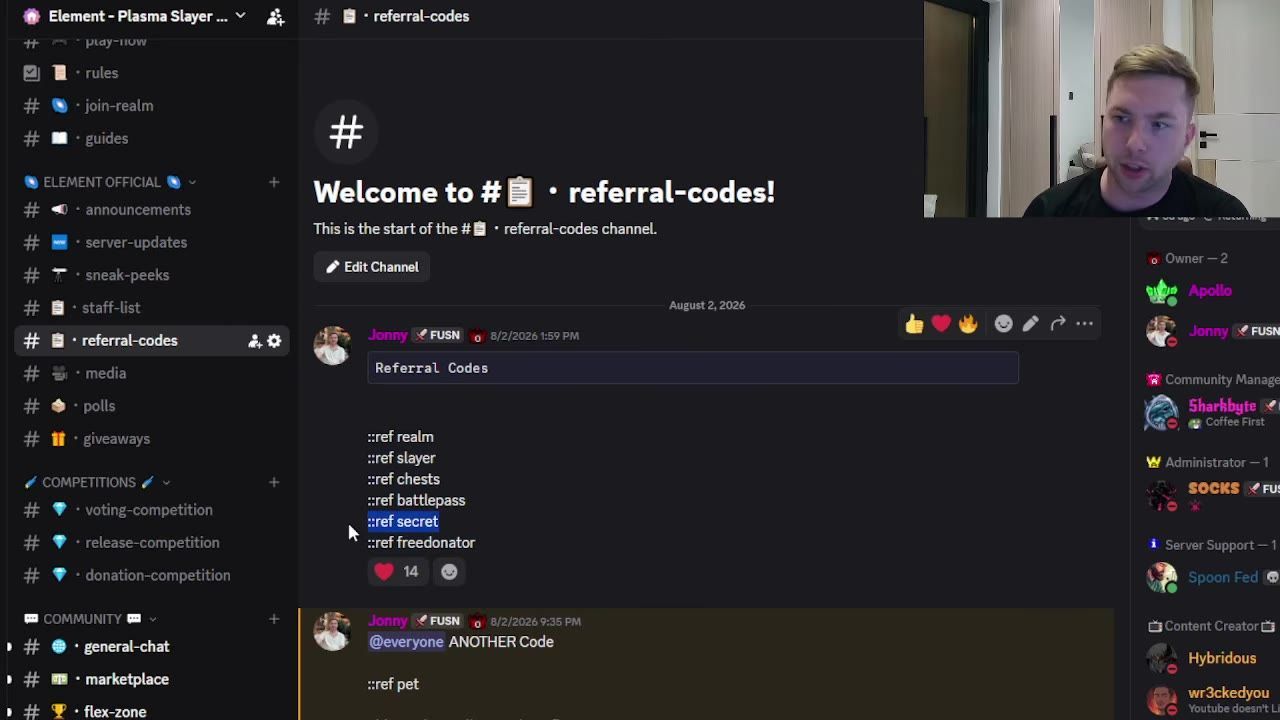
Use referral codes right away to boost your start on the server. Referral codes can be redeemed by typing :ref in chat and include options such as Bond, Gold SP, Reckt, Hidious, and others. Each code provides rewards like best-in-slot items, rings, and pets, enhancing your early gameplay experience. For example, the dragon pet referral code gives you a Release Dragonling alongside your primary pet, allowing you to summon two pets simultaneously.
steps
- Type
:refin chat to open the referral code interface. - Enter codes like Bond, Gold SP, Reckt, and Hidious to claim rewards.
- Equip items like the best-in-slot ring in your cosmetic slot for additional bonuses during gameplay.
Complete Starter Tasks
Starter tasks are essential for gaining rewards and jumpstarting your progress. Access these tasks by typing ::progress in the chat. Completing them provides valuable loot, enabling you to build a strong foundation. Rewards can range from essential gear to other benefits that will help your early gameplay.
steps
- Open the starter tasks interface by typing
::progressin chat. - Review the tasks listed under "Player Progress Tasks."
- Complete the objectives to receive valuable rewards that help kickstart your journey.

The starter tasks interface displays Player Progress Tasks with available objectives and rewards. — jonnyd3vs
Utilizing the AoE Orb
The AoE orb is a powerful tool provided free when you start. This item allows you to attack multiple enemies simultaneously within a grid. Initially, the orb starts with a 3x3 grid size and can be upgraded to a maximum of 10x10 for more significant impact. Keep the orb in your inventory to utilize its effect during combat.
steps
- Ensure the AoE orb is in your inventory upon starting the game.
- Attack enemies within the orb’s grid size to benefit from Area of Effect (AoE) combat.
- Upgrade the orb to larger grid sizes by evolving it, increasing its combat effectiveness.

The inventory screen includes multiple items, with the AoE orb clearly displayed. — jonnyd3vs
Using the Item List
The item list is an invaluable resource for planning your character’s progression. You can access it through the quest tab or by typing ::items in the chat. It provides detailed information about item stats and bonuses.
steps
- Open the item list through the quest tab or by typing
::itemsin chat. - Review item bonuses and stats to decide your next upgrades.

The item list panel displays various melee weapons and their stats. — jonnyd3vs
Voting Rewards
Voting daily is beneficial and provides consistent rewards. Use the **::vote board** command to access the voting interface and claim rewards such as minor mystery boxes, charms, and voting streak bonuses. Mystery boxes can yield high-value items, and charms grant temporary bonuses like damage increase and drop rate boosts.
steps
- Type
::vote boardin chat to access the voting interface. - Vote daily to earn rewards, including minor mystery boxes.
- Use charms from voting rewards for temporary gameplay boosts.

The voting board interface displays rewards available for voting in the game. — jonnyd3vs
Participating in Giveaways
Maximize your rewards by engaging in community giveaways. Attend events like drop parties, where free loot is distributed in large numbers. Additionally, comment your in-game name on videos shared in the media Discord channel to enter giveaways for store credits, which can be claimed and used to purchase items.
steps
- Attend server events like drop parties to obtain free loot.
- Monitor the media Discord channel for YouTube videos posted by content creators.
- Comment your in-game name on these videos for a chance to win store credit.
- Claim rewards like $50 store credits using
::claimand use them in the in-game store.
FAQ
What should I do first on Fusion RSPS?
Start by redeeming referral codes with :ref in chat, completing starter tasks using ::progress, and utilizing the free AoE orb. These activities will provide valuable gear and help you establish a solid foundation.
How do starter tasks work on Fusion RSPS?
Starter tasks can be accessed with ::progress. They consist of simple objectives that reward you with loot and boost your early-game progression.
What is the AoE orb in Fusion RSPS and how do I use it?
The AoE orb is a free item provided at the beginning of the game, enabling you to attack multiple enemies simultaneously within a grid. Keep the orb in your inventory during combat and upgrade it to enhance its range.
Where can I find a list of items on Fusion RSPS?
You can access the item list through the quest tab or by typing ::items in chat. The list provides details on item stats and available bonuses.
How do I vote and claim rewards on Fusion RSPS?
Use the ::vote board command to access the voting interface and vote daily. Completing votes can reward you with mystery boxes and charms that provide temporary gameplay bonuses.
How do I claim rewards from in-game giveaways on Fusion RSPS?
Participate in server-hosted events like drop parties or comment on YouTube videos shared in the media Discord channel with your in-game name for a chance to win store credits. Claim rewards using the ::claim command.
Sources
Screenshots on this page are frames from the videos below, used to illustrate the steps they describe. All rights remain with their creators.
- NEW RSPS 2026 JUST RELEASED! Best Beginner Progression Guide - Fusion RSPS — jonnyd3vs, August 30, 2026